Ready or Not: A Comprehensive Guide to Removing Mods
Ready or Not's modding community offers exciting enhancements, but mods can also introduce instability and prevent multiplayer with unmodded friends. This guide details how to completely remove all mods from your game.
Removing Mods: A Step-by-Step Process
Regardless of your mod installation method (Nexus Mod Manager, mod.io, or manual), follow these steps to remove all mods:
-
Unsubscribe: Launch Ready or Not. In the in-game Mod Menu, unsubscribe from all active mods. This prevents re-downloads after deletion. Close the game.
-
Steam File Deletion: Open Steam, right-click Ready or Not in your Library, select Properties, then Installed Files, and finally Browse. This opens the game's directory. Navigate to Ready Or Not > Content > Paks. Delete all files and folders within the Paks folder. Then, delete the Paks folder itself.
-
LocalAppData Deletion: Press Windows+R, type
%localappdata%, and press Enter. Locate the Ready or Not folder, navigate to Ready Or Not > Saved > Paks, and delete the Paks folder within. -
Verify Game Files: Right-click Ready or Not in Steam, go to Properties > Installed Files > Verify Integrity of Game Files. This ensures no corrupted files remain.
-
Optional Reinstall: For a completely clean slate (recommended if you won't be using mods again), consider reinstalling Ready or Not.
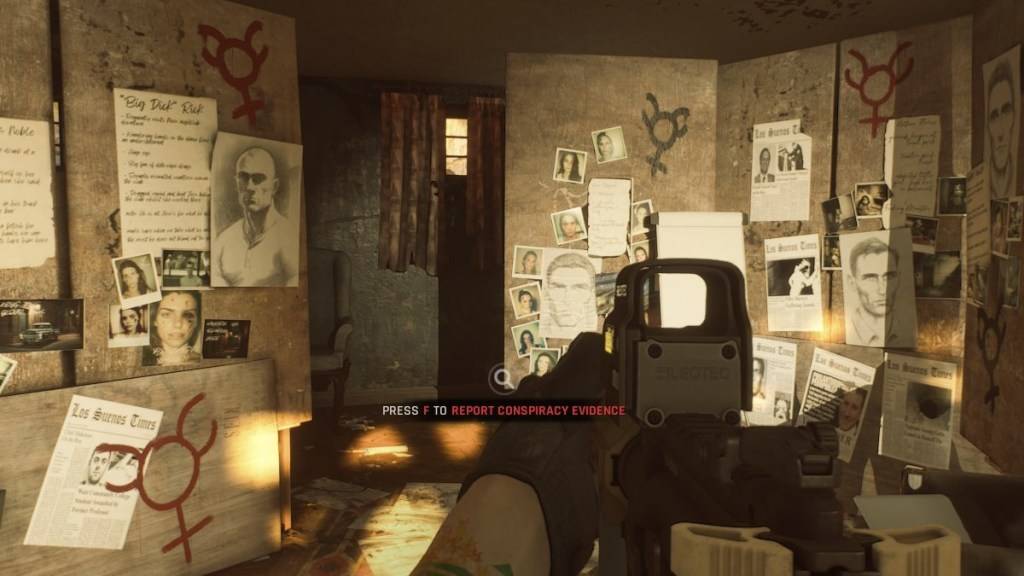
Why Remove Mods?
While mods enrich Ready or Not, they can also cause:
- Instability: Community-created mods may introduce bugs, glitches, and errors. Removing them often resolves these issues.
- Multiplayer Compatibility: Mods prevent playing with friends who don't have the same mods installed.
Ready or Not is available now on PC.